5 features we’d love to see on Android phones in 2015

flagship smartphones aa (8 of 18)

Smartphone technology moves fast, but manufacturers can also be pretty cautious at times. The easiest and surest route to profit is often to match the competition and build on what’s there, rather than go back to the drawing board. While there’s an ever-expanding roadmap of possibilities opening up before us, many prove to be dead ends, and it takes major success with a road less traveled before the pack takes note.

I wrote this exact feature two years ago, 5 features we’d love to see on Android phones in 2013, and while there’s been some progress, three of those entries are going to make this list as well. Better Wi-Fi and more antennas don’t seem pressing anymore, but flexible displays, better batteries, and tougher phones are still totally relevant.

Flexible displays


We’ve seen a toe dipped in the water with regard to flexible displays as Samsung and LG have experimented with curves in the shape of the Samsung Galaxy Round and the LG G Flex. But a very slight curve in the rigid display is not what we have been waiting for.
samsung galaxy note edge review aa (23 of 26)

The Samsung Galaxy Note Edge is a real step in the right direction. Here’s something that’s genuinely innovative. It has a strip on the edge that can come to life independently of the main display and offer extra controls. It’s also potentially readable on the nightstand when you’re lying in bed. It would have been more impressive if Samsung had the bravery to launch it as the flagship Note, the next step in the series and really throw some marketing weight behind it. The strip is a good idea, but you also get the feeling it needs imaginative software developers to make the most of it and Samsung might not be the best company to deliver. Honestly, it’s still not what we’ve been waiting for.

What we’ve really been waiting for is a device with a genuinely flexible display that folds from smartphone size for your pocket up to tablet size when you want a larger screen. Flexibility introduces serious technical challenges relating to touchscreen functionality, not to mention the rest of the components that make up the average smartphone. Although I could see the value in a device with a normal smartphone touchscreen and an extendable display without touch functionality for reading and watching movies on.

It’s going to take a seriously clever design to pull this off. I don’t expect it next year, or even the year after that, but we should see some new designs in the short term that challenge the slab form factor and use flexible displays in innovative ways.

Better batteries


The average size of batteries is going up, but OEMs keep building bigger, higher resolution screens. A lot of the new hardware inside smartphones is about doing more with less power, but are we really feeling the benefit? I think battery life has improved a lot, but it depends on what device you use. My Xperia Z2 definitely outlasts any previous Android phone I have owned (HTC Desire, Samsung Galaxy S3, Nexus 5), but I’m greedy and I still want it to last longer.
aa-htc-butterfly-2-battery

We’ve looked at why wireless charging hasn’t taken off properly in the past. There is technology in the works to charge your device while it sits in your pocket, but is this kind of charging really the answer to our battery woes? Charging speeds have been increasing and there’s obvious value in being able to fully charge a phone in an hour or less, but it still won’t solve the problem of running out of juice.

Battery saving software has been improving as well, but maybe the designers need to do more to consider power usage. What kind of trade-off would you accept? If you got 25% longer battery life if your phone had a 1080p display, over a 4K display would you take that deal? Battery life is improving, but OEMs could be taking more advantage. The E-Ink display on the YotaPhone 2 is a great example of some smart design that could really boost battery life.

Tougher phones


This has been tackled to an extent, as Sony pushed waterproofing into the Android mainstream. I’ve dropped my phone in the bath twice without any ill effects; though in the past I probably wouldn’t have risked using my phone in the bath. Water resistance should be standard in a smartphone now.
LG G Flex Drop Test Outdoors AA (18 of 25)

The trouble is that general toughness has not improved. My Xperia Z2 survived a fall from standing height onto a tile floor unscathed, but then fell off my lap while sitting onto a wooden floor and cracked. There’s a definite element of luck to smartphone falls, but a thin slab of glass and metal or plastic is inevitably going to be prone to breaking on impact with a hard surface.

I resent having to slap a case on my beautifully designed smartphone. I want it naked. There are some great case manufacturers out there, but they’re still a reluctant necessity rather than something to get excited about. The trouble from an OEM point of view is that greater durability without adding bulk is tough and everyone wants slim devices. There’s limited benefit to them because they make money if you break your phone and have to repair it or buy a new one. The strength of durability as a selling point for consumers isn’t all that clear.

No more passwords, wallets, or keys


nexus 6 first impressions (3 of 21)


Imagine that your smartphone knows when you are holding it without you having to enter a password, PIN, or pattern. Biometric finger or eye scanning, or voice recognition are all potentially much more convenient. It could even learn the way you move, measure distances, recognize your gait. A combination of factors could make this really secure. It should unlock automatically when you hold it and lock up when someone else does, unless told otherwise.

If your smartphone can reliably identify and authenticate you then it would be safe to use it as your universal key. I want my smartphone to start my car and unlock my front door. I want to use my smartphone to pay for goods and services. I don’t want to have to carry anything else. The technology is here, it just needs to be polished and proven trustworthy.

People often argue the dangers of a system like this, but fail to recognize that the current system is less secure. If I steal your wallet, I can spend your cash. I can probably get away with using your plastic in certain scenarios without needing the PIN. I can certainly use your keys to enter your house or drive your car. I can’t do any of that with your smartphone if it has a secure authentication system that won’t let me in.

Thinking ahead


I’m possibly overexcited by the potential pre-emptive powers of Google Now, but the reality is often disappointing. Pushing up a train timetable as I arrive at the station, warning me about traffic, or providing a sports score update is all well and good, but I’d like to see it go further.
google now nexus 5 2

As Google Now spans more devices and potentially has access to more data about me, I’d like it to do more for me. For a start it should be able to sync across devices and update accordingly when I dismiss something, I don’t want to see the same card I swiped away on my phone still there on my tablet or desktop (that applies to all Android notifications).

It should be the hard-working personal assistant that most of us can’t afford. Remind me to send a message to this person without me having to set a reminder, tell me that my favorite band is playing close by next month, or make sure I don’t forget to pay a bill. How about telling me I could save money by switching to this service, or alerting me to a big discount deal on something it knows I want?

I want an Android phone that’s thinking ahead for me.

That’s it for now. Agree or disagree? Want something else I didn’t mention? Hit the comments and tell us. I’ll see you in two years when hopefully I’ll have to draw up a completely new list because these features have been delivered.


Source from:

http://www.androidauthority.com

Upcoming Android Phones for Last Season of 2015


Nokia upcoming android phone 2015 eagles | Play on a mobile phone fun


Looking for the best android phone for the last season of 2015? Android is very popular and almost all mobile phones by any names of the brands or companies uses Android as the OS of the phone. And for you as an Android hunter, it is important to get up-to-date with the upcoming android phones to always update the information of new Android that will be introduced in the market. And you will also find a list about the new android that will come.

In the list of upcoming android phones 2015, almost all brands or companies will introduce the new update of their Android phone either with the new type or the next generation of the previous time. And sure, it is not only about the type or brands of the upcoming android phones that you need to know but also the specs and feature of each type of the Android phones. Sure, the change may not be so different with the previous android phones.

Commonly, the upcoming android phones will offer more features and some also update and upgrade the system and technology to make the phone more than just a mobile phone or for entertainment but also for working. So, it depends on what you want to look for the phone as each type of phone may have the good point at certain feature and for another may not. It is just like other brands of Android phones that may be excellent in one feature but not for another one.

That is why, if you go online, you may find a list of upcoming android phones with certain number of the new Android phones that will come in the market with their own pros and cons. Therefore, it is a good idea to read the review of each type of the phones. And there are also some reviews from professional editor or reviewer you can read to find the best one from these upcoming new android phones.

Description: upcoming android phones give you more options with new Android phones and with new features and technology and system. Reading the review of the phones is a good idea.

Source from:

http://appsfree.us

Huawei Announces Latest 7-inch Android Smartphone, The MediaPad X2


huawei-x2-amber


March 1, 2015 - Written By Jeremiah Nelson


Huawei unveiled some awesome new smartwatches this morning, as well as some new fitness trackers. That’s not all we got from them this morning, though as the company also announced a new 7-inch “smartphone” called the MediaPad X2. It’s basically a tablet with a phone radio in it, so it does make phone calls. Technically you could call it a smartphone and Huawei does. From the front it looks quite a bit like an HTC device.

The MediaPad X2 is an updated version of the MediaPad X1. It has a 2.0 GHz Kirin 930 chipset inside and it supports Cat. 6 LTE for ultra-fast data speeds. It also has a 1900 x 1200 display resolution, 5,000 mAh battery, a 13-megapixel camera on the back, and a 5-megpixel camera on the front. The device will ship with Android 5.0 Lollipop and it is running Huawei’s custom UI on top of it. “Featuring a fully laminated 7-inch ultra HD IPS screen and a slim body of only 7.28 mm, the MediaPad X2 houses an ultra octa-core chipset, making it the first 64-bit ultra octa-core, 4G-enabled LTE dual-sim phablet,” Huawei says in their press release.

The device will come in two different versions. There’s a 3GB variant that has 32GB of internal storage, and a 2GB version with 16GB of storage. The 2GB version comes in silver, while the 3GB version will come in rose gold. Both devices will have dual-SIM slots. No word on pricing or availability on these “phones” yet, but Huawei should be announcing that at some point soon.

We’re live in Barcelona, Spain, for MWC 2015, bringing you all of the news and new devices that are coming out. We’ll be at HTC’s event, which kicks off at 10am Eastern Time, and then we’ll be on hand at Samsung’s Unpacked Event at 12:30pm ET time as well. The fun is just getting started as MWC 2015 is just getting started. The event runs through Thursday, March 5 and will be jam-packed with new phones, smartwatches, and a whole lot more.


Source from: http://www.androidheadlines.com

Meet Alcatel’s new Android phones, the biggest underdogs of MWC 2015


Meet Alcatel’s new Android phones, the biggest underdogs of MWC 2015

alcatel-one-touch-idol-3-mwc-2015-52


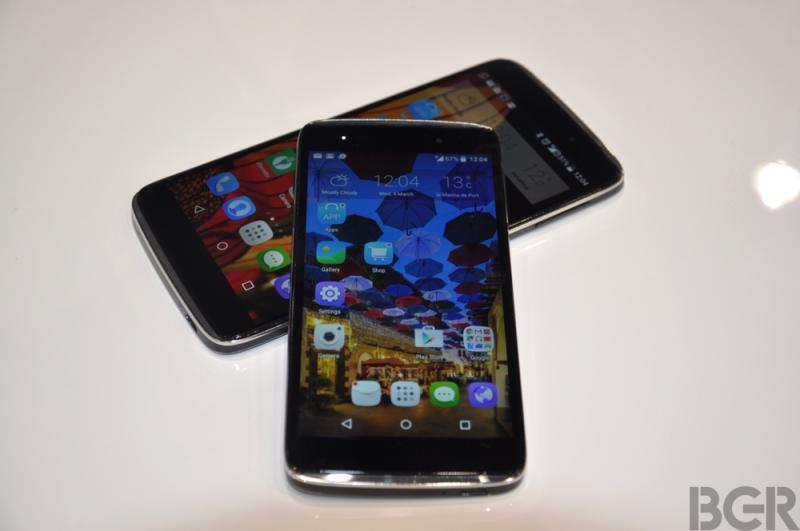
Apple’s 4.7-inch and 5.5-inch iPhone 6 models are the smartphones to beat this year, and some companies have already come out with worthy rivals, including the HTC One M9 and the Galaxy S6 that both debuted at this year’s Mobile World Congress. But these top devices were not the only Android handsets unveiled at the show, with one company coming out with a set of brand new smartphones that, coincidentally or not, have exactly the same screen sizes as Apple’s 2014 iPhones.


FROM EARLIER: Hands-on with the best Android smartwatch that has ever been made


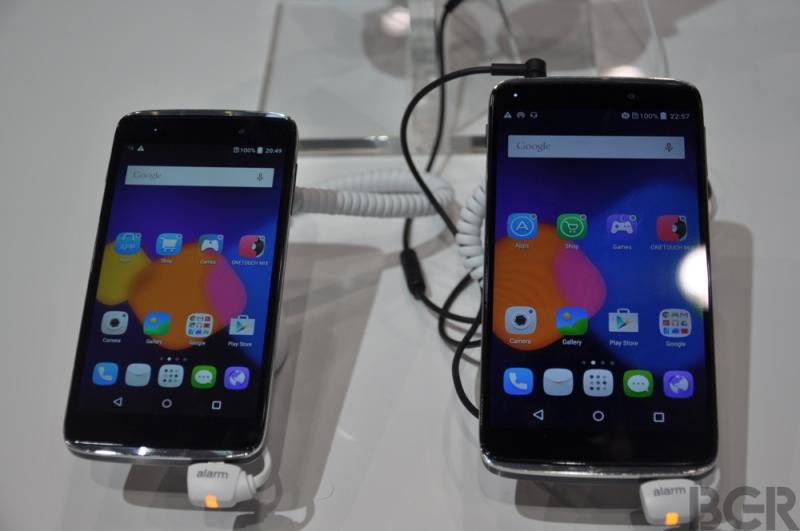
Alcatel on Monday unveiled the OneTouch Idol 3 line that contains precisely two models: A 4.7-inch version and a 5.5-inch version. But even though Alcatel says these smartphones feature top-line technologies, they’re not necessarily flagship handsets by this year’s standards.


Of course, the two smartphones do have some special features that are supposed to differentiate them from competitors, but don’t think of unibody two-tone aluminum designs or curved displays. Instead, Alcatel is offering users JBL audio integration and two-front facing speakers for significantly improved audio.


The phones also have a feature you don’t see on any other devices: 100% reversability, which means their software can adapt automatically to the screen orientation, no matter how a OneTouch Idol 3 is held.


However, this 100% reversability feature only concerns the user interface — the physical buttons on the handset, or the cameras’ placements, can’t change positions just because you want to hold the device in a different way. The feature is really useful for not having to bother with picking the device in the right way to make sure everything on the screen is facing up.


The most interesting thing about them is that they will both launch with Android 5.0 Lollipop on board, which should be good news for anyone looking for some affordable Android devices capable of delivering great performance.


Specs-wise, the 4.7-inch model has a 720p display, 1.2GHz Snapdragon 400 processor, 1GB of RAM and 8GB of storage (16GB available for dual-SIM model), microSD support, 13-megapixel main camera, 5-megapixel front-facing camera, and 2,000 mAh battery.


The 5.5-inch OneTouch Idol 3 has a bigger display with Full HD resolution, 64-bit octa-core Snapdragon 615 processor, 2GB of RAM, 16GB/32GB of memory (depending of number of SIMs) and 2,910 mAh battery.


The phones should be launched at some point in April, with prices ranging from around $200 for the 4.7-inch handset, and at around $250 for the 5.5-inch phablet.


alcatel-one-touch-idol-3-mwc-2015-1


Source from: https://www.yahoo.com

22 tips, tricks and shortcuts for Android Lollipop


The innermost secrets of Android’s new operating system: psychadelic colour schemes, enhanced privacy and how to unlock your phone with your face.
Android meadow


1. Settings Search Bar
android tip Settings search


Settings now has its own dedicated search bar. While this may seem like a very minor addition, it’s actually a great timesaver when you know exactly what you’re after. For example, let’s say you want to change your network settings, but you don’t know where to look. Just head to settings and search for “network” and you’ll find what you need almost instantly. This is one of many neat little features in Lollipop that really helps to increase efficiency in a simple and intuitive way.

2. Swipe Twice For New Notification Bar


Lollipop comes with a new notification bar – simply swipe down once from the top of your screen to look at your notifications and swipe down once more to access your quick settings. As in previous versions, it’s still possible to access your quick settings with a little more speed by swiping down with two fingers instead of one. From here you can access all the usual and familiar Android features, with a few new options introduced with the new OS, such as flashlight.

3. Flashlight
android Tip #3: Torch


Android finally has its own built in flashlight button, which can be found in your notification screen. This feature, which has been on iOS and Windows Phone for some time now, uses your phone’s LED flash as a torch at the touch of a button. Previously, Android owners were forced to download a separate flashlight app, which if you’re upgrading, you can probably go ahead and delete now unless you’re after specific third party features, such as strobe lighting or timed flash effects.

4. Data Usage Notification


This is a handy feature if you’re on a strict data plan and you have a tendency to go a bit overboard. Use the two fingered downward swipe to access your quick settings before tapping on your phone’s signal symbol. A new screen will appear displaying the amount of mobile data you’ve used. Tap More Settings and you can set a specific data warning as well as a data limit, making it almost impossible to veer outside of your contract and saving you from racking up some unsightly bills. For instance, if you have 5GB of data a month, you can set the warning at 4GB and the limit at 5GB. Once you reach 5GB of data usage, your phone will turn off all data.


5. Hide Or Disable Sensitive Notifications


Notifications have received a lot of special attention in Lollipop. Not only do you have more control over them (such as double tapping to open the app associated with the notification), but they’re now also displayed on your lock screen, allowing you to see what’s happening on your phone at a glance. The downside to this however is that so can anyone else. If you’re receiving notifications that display sensitive content, you can make sure this is kept hidden until you enter your passcode. Just head to Settings > Sound and Notifications and under the setting that says ‘When device is locked’ select ‘Hide sensitive notification content’. You can also hide all notifications if you wish.

6. Long Press To Remove Notification Spam
Android Tip #6: Silence notifications


With a lot of apps come a lot of notifications. Sometimes these are helpful, such as weather updates or chat notifications, but other times they’re a pain in the neck, such as software updates or intrusive games urging you to buy upgrades. Next time you receive a notification you don’t want, tap and hold it until a small ‘i’ appears on the right hand side. Tap the ‘i’ button and you can either block the app from sending notifications in the future, or set it as a priority, so that it’s always at the top of your list and will come through even when your phone is set to silent.

7. Do Not Disturb
Android Tip #7: Do not disturb


Lollipop’s do not disturb features are incredibly easy to set up. Turn your volume up or down using the rocker switch on the side of your device and a small window will pop up with the options None, Priority and All. Tap None and no notifications will wake up your phone, this includes calls, texts, updates and even alarms. Tap Priority and only specific interruptions will be allowed through – to set these up, tap the little cog wheel on the top right hand corner. Finally, All will allow all notifications to come through. Each of these setting can be assigned to work for a specific amount of time or indefinitely.

8. Create Profiles, Limit Functionality
Android Tip #8: Add users


You can now create custom and guest profiles in the latest Android update. Swipe down on your notifications bar and tap the profile icon in the top right hand corner to view the user profiles currently available. If you haven’t used this before, you will see your own profile and the option to log in as a guest or create a new profile. Logging in as a guest is a quick way to share your device with limited functionality – perhaps if you’re loaning your phone to a friend or a co-worker for a few hours. Creating a new profile however will provide the user with their own space, which can be customised with more features that are not available in a guest profile.

9. Pin Your Screen


While separate user and guest profiles are great for loaning your phone to friends, it’s possible to limit the functionality of your device further by pinning your screen. Go to Settings > Security and turn Screen Pinning on to activate this feature. Now you can pin a single app to your screen by switching to the multi-task view and selecting the green pin button on the bottom right corner of your selected app. The specified app will stay open while all other functionality on your phone will be disabled unless you type in your passcode. This is great if you wish to lend your phone to someone who wants to make a quick phone call or search for something online, but you don’t want them nosing through your device.

10. High Contrast Text
Android Tip #10: High-contrast text


A number of experimental features have been added to Lollipop. One of these includes the introduction of high contrast text. Head to Settings > Accessibility and you’ll find it under the System sub-heading. The effect is actually quite subtle, but if you’re struggling to read some of the text on your Android device, it could make all the difference. At the time of writing, it doesn’t seem like all of the text is affected. However, this is marked as experimental, so various inconsistencies should be expected.

11. Colour Inversion And Colour Correction
Android Tip #11: Colour inversion


If you’re colour blind or your vision is impaired then these features could improve your experience with Android’s new OS. Go to Settings > Accessibility and scroll to the Display sub-heading at the bottom. Turning Colour Inversion on will dramatically change the look of your device and may be more soothing on the eye for some people. Selecting Colour Correction will allow you to choose from three different colour modes – Deuteranomaly (red-green), Protanomaly (red-green), Tritanomaly (blue-yellow) – which may be beneficial to some colour blind users. As with the high contrast text, this is an experimental feature and may slow down your system.

12. New Lock Screen Swipe Options


The lock screen has undergone some small but pleasing changes with the introduction of Lollipop. You’ll notice there are now three icons at the bottom of your screen when you wake up your phone. These include a phone, a padlock and a camera. Swipe directly upwards and you’ll unlock your phone just as you normally would. However, swipe from left to right and you’ll not only unlock your phone, but you’ll be taken to your contacts list. Swipe from right to left and you’ll go straight to your default camera app. These features are fairly minor and hardly ground-breaking, but they’re a nice addition that can really help to increase overall efficiency.

13. Battery Saver
Android Tip #13: Save battery


The battery screen will not only give you the usual handy breakdown of what’s draining the most juice from your system – complete with a swanky looking graph and an approximation of how long you have left until your phone dies – but it now has a very effective battery save feature. You can get there by swiping downwards from the top of your screen with two fingers and tapping the battery icon before tapping the three dots in the right hand corner and selecting Battery Saver. Turn this on and it will attempt to reduce your device’s battery usage by limiting vibrations and most background data. Additionally, apps that rely on syncing may not update unless you open them. This feature turns off automatically when you charge your phone.

14. Unlock Your Phone With Your Face


This is not a new feature and frankly, a bit stupid. However, it seems to be more reliable than in previous versions of Android, it’s a lot of fun and opening anything with your face feels very cool and futurey, so to hell with practicality. Go to System > Settings > Smart Lock and select Trusted Face. Go through the on screen instructions and before you know it you’ll be accessing your phone with your gorgeous looks. Please keep in mind however that this is a bit of a gimmick. Face matching is less secure than a password, pattern or four digit PIN and if anyone looks like you, they can potentially unlock your phone.

15. Cast Your Screen Via Chromecast


If you’ve been using Google’s simple but brilliant Chromecast – a small media streaming device that plugs into the HDMI port on your TV, essentially turning it into a (slightly) smart TV – then you’ll be pleased to know Android has made it even easier to operate. Previously you’d have to download an app in order to cast your device to your TV, however this functionality is now built into Lollipop. Just double swipe down to access your notifications bar and select the Cast button. Your device will automatically detect your Chromecast and you can begin casting instantly.

16. Access Alarm Quickly
Android Tip #16: Access alarm


Once you’ve set your alarm, you can now access it from the notifications bar. Drag down from the top of your screen twice (or use the two finger method) after you’ve set your alarm and you’ll notice a new clock icon, which will display the time at which your alarm is set to go off. Not only does this mean you won’t have to go back into your clock app to make sure you set the correct time, but if you tap it, it will take you directly to the app, where you can change any settings as you normally would.

17. Wake Your Phone With Your Voice
Android Tip #18: Wake screen with your voice


From your home screen swipe left into Google Now, tap the three bars in the top left hand corner and head to Settings > Voice > “OK Google” Detection. From here you can turn voice detection on, which will work even when your device is locked and the screen is off, allowing you wake your phone or tablet by simple shouting “OK Google”. However, a word of warning – according to Google, when using voice activation commands or touching a microphone icon, a recording of the next thing you say, plus a few seconds before, may be used and stored by the search giant and associated with your Google account to help recognise your voice and improve speech recognition. If that makes you uncomfortable, you might want to make sure this is turned off.

18. Tap and Go
Android Tip #19: Tap and go


Transferring your contacts and details from one phone to another can be incredibly tedious, but if you’ve bought yourself a new Nexus 6 this year, there’s a quick and easy solution. On booting up your phone for the first time, it will ask if you would like to take advantage of Tap and Go. Tap yes and hold your old Android phone against the back of your new one. All of your data will be transferred across to your new phone via Bluetooth, saving you the hassle of potentially manually installing large swathes of apps and typing in missing contact details.

19. Apps Remain After Reboot
Android Tip 20: Apps


Here’s another small feature from Lollipop that’s so useful, you’ll wonder how you lived without it. Ordinarily, any apps you have open will be completely closed and shut down when you reboot your phone, which is particularly annoying if you’re working on a lot of different things at once. However, Lollipop now solves this issue with their new Overview screen (this used to be called Recent Apps), which retains all of the apps you were using, even after a reboot. You can access the Overview screen by tapping the square button on the bottom right hand corner of your device.

20. 5.1 Surround Sound


To get the best available sound quality from your device open Google Play Movies & TV, tap the three bars on the top left hand side of the screen, select Settings and tick Enable Surround Sound. This will now activate 5.1 surround sound whenever it’s available. If you’re dubious, there’s even a demo you can play to test the quality, which is just below the Surround Sound setting.

21. Remove Download Clutter


Whenever you download an app on Android, it will automatically place it on your home screen. A lot of people don’t like this as it can cause a lot of unnecessary and extremely disorganised clutter. To disable this, open the Play Store, tap the three bars in the top left hand corner, select settings and uncheck the ‘Add icon to Home screen’ setting.

22. Lollipop Easter Egg
Android Tip #23: Lollipop game


This is completely pointless but a lot of fun. Head to Settings > About Phone and tap Android Version four times in quick succession. You will be presented with a small coloured dot. Tap the dot and it will grow into a lollipop. Keep tapping and it will change colours. If you hold your finger down on the lollipop, the entire screen will change. Tap the screen once more and you’ll be able to play Android’s version of Flappy Bird, which is just as rage-inducing as the original and just as pointless.

* This article was amended on January 13. A tip about double-tapping the screen to wake-up your device was deleted as the feature has been removed in a recent update.

Source : http://www.theguardian.com

Android 5.0 Lollipop tips and tricks: Get to grips with a new Android


Android 5.0 Lollipop brings a range of changes to Google’s OS. Available initially on the Nexus 9 and Nexus 6, and rolling out to older Nexus devices and specific third-party handsets over the last few weeks, there’s plenty of new features to get to grips with.

If you’re feeling a little lost, or don’t know where to find something, our Android 5.0 tips and tricks will get you started. We’ve even broken it down into sections to make it easier to find what you’re looking for.

Have fun exploring and be sure to let us know any hot tips of your own in the comments below. We will be adding to this list as we see more Android 5.0 Lollipop devices.

Android 5.0 general tips and tricks


Play Flappy Android: Lollipop’s Easter Egg is an Android take on Flappy Bird. Head into Settings > About phone/tablet > Android version. Then tap the Android version repeatedly until it changes to the Lollipop screen. Once you have the full Lollipop wording visible, press and hold. You’ll flip into the Flappy Android game. Enjoy!

Tap to wake: Don’t reach for the power button, just double tap the display and it will wake up, so long as your device has the hardware to support it.

Search settings: Rather than rooting through everything, you can search the settings. Just open up the Settings menu and hit the magnifying glass and type what you’re looking for.

Stop adding new app icons to homescreen: If you don’t want new apps you install cluttering up your homescreen, head into Play Store > Settings and uncheck the box.

Add Yahoo! Mail to Gmail: You can add Yahoo! or other mail services to Gmail. Tap the icon to open the sidebar, scroll all the way to the bottom and hit Settings > Add account. You have the option for Google, IMAP/POP3 services (like Yahoo, Outlook.com) and Exchange.

Attach anything to Gmail: It’s not new, but tap the attachment button and you can attach local files, things in Drive, Photos, Dropbox files, OneDrive box and so on. It’s really flexible.

Limit Drive-enabled apps to Wi-Fi sync only: To save yourself a data bill, head into the Google Settings app > Drive-enabled apps and turn on Wi-Fi only. Alternatively, if you need it to sync on a cellular connection, switch it off!

Customise Google Now: Tap the settings icon that appears in the search bar. Here you can select the content you want to see, as well as change the settings, or place reminders.

Set a metered Wi-Fi network: Head into Settings > Data usage and select Network restrictions from the menu. Here you can set a Wi-Fi as metered, so it will restrict background data and give warnings for large downloads, perfect for tethering or Mi-Fi hotspots.

Turn off backgrounds in Calendar: Don’t like the seasonal backdrop in your new calendar? Head into Settings and tap the slider to turn it off.

Turn on 5.1 surround sound: Play Movies now supports 5.1 soundtracks. Head into Settings > Enable Surround Sound. There’s even a demo clip so you can test it.

Android 5.0 notifications tips and tricks


Instant access to lockscreen notifications: Just tap a notification twice and it will open up the app. Want to dismiss it? Just swipe it away.

Pinch to expand: Got a stack of notifications? You can pinch to expand them, both on the lockscreen and in the notifications area.

Hide sensitive information in lockscreen notifications: You can have lockscreen notifications without to much information being revealed. Head to Settings > Sound & notification > App notifications, to manage apps with sensitive information.

Then go to Settings > Sound & notification > When device is locked, to change the information revealed. This will then ensure that all apps you’ve marked up don’t give anything away.

To mark an app as a Priority app: Head into Settings > Sound & notification > App notifications and you can set and app as a priority so you always get notifications from that app.

To turn off notifications on an app: Go to Settings > Sound & notification > App notifications. Here you can block all notifications for any app on your device.

Silence notifications: Hit the volume button and then hit None, Priority or All. If you select Priority, only your Priority notifications will be served up.

Suspend notifications: Hit the volume button, select None, then either Indefinitely, or select a time period – ideal to keep your device silent during meetings. You can also opt here to only have Priority notifications for a time period, before reverting back to all notifications.

Quickly switch to vibrate alerts: If you want silence, but are after vibration alerts still, then push the volume button and tap the bell on the pop-up. This will switch to vibrate.

Quick Settings tips


Quickly select a Wi-Fi network: Swipe down for Quick Settings, then click the network name beneath the Wi-Fi icon. This takes you through to the Wi-Fi settings.

Quickly manage Bluetooth: The same applies to Bluetooth. Click beneath the Bluetooth icon in Quick Settings and you’ll head into settings to select your device.

Turn on flashlight: There’s no need for a separate app, just tap the button in Quick Settings to turn on your flash as a torch.

Cast your screen: Want your Android device on your TV? Just swipe down and tap Cast screen and it will be sent to your Chromecast. Not all apps are supported though.

Android 5.0 battery tips and tricks


See your battery percentage: Open Quick Settings with a two-finger swipe. Your battery percentage is displayed here.

Time till fully charged: Charge time is displayed when connected to a charger. Look at the bottom of the lockscreen and in the battery status screen, but it takes a little while for Android to calculate how long charging will take.

See what’s eating battery: Swipe down Quick Settings, tap the battery icon. You’ll go to the battery status page and see how long you have left and what apps are eating your battery.

Turn on power saver: In the battery status page, tap the menu button, select power saver. You can elect to have to automatically switch on at 15 per cent or 5 per cent battery. The system bars turn orange when it is on.

Multiple user tips


Limit what users can see: Create a restricted profile by tapping Settings > Users > Restricted profile. You can then limit what your children can access, for example.

Guest profile: In the same area (Settings > Users) you can create a Guest profile. While it is setup, you’ll get the option to access as a guest from the lock screen.

See how much storage they’re using: If you want to know how much space is being used up by another profile, head into Settings > Storage. At the bottom of the list it says how much other profile and the guest is using.

Security


Instant lock: In Settings > Security there’s the option to lock the device as soon as the screen goes to sleep. You’ll find the option to lock as soon as you press the power button too. These are old settings, but really useful.

Face unlock: Head to Settings > Security > Smart Lock. Here you can have the device register your face, so it will unlock when you look at it. This is in addition to a pattern or password. If it fails to recognise your face, you’ll have to enter your password.

Bluetooth unlock: Again in Security > Smart Lock, you have the option to nominate trusted devices, so your Android will unlock when connected to something else. You can nominate Bluetooth devices (like your smartwatch or car Bluetooth) or select an NFC tag.

Source : http://www.pocket-lint.com


On just how to Use Android Blog With NOTEBOOK OR COMPUTER Using BlueStacks tips

On just how to Use Android Blog With NOTEBOOK OR COMPUTER Using BlueStacks tips. 2015 Most recent Strategy. Take part in Just about all Stuff Associated with Android Devices within your NOTEBOOK OR COMPUTER

bs1
Inside the following sentences allow me to explain to you recommendations on HOWTO place in and in addition purpose Android os applications in COMPUTER SYSTEM. Inside your every-day lifetime I'm implementing google android programs to performing our personal chores pertaining as well as android OS video-game games regarding amusement. We could easily operate these types of google android applications and in addition gaming titles within our own PC SYSTEM applying ‘BlueStacks‘.
About BlueStacks
BlueStacks can be a software corporation which produces Bluestack products like BlueStacks app person and BlueStacks cloud join. These items are made to permit Android purposes to perform on Mac computers windows and windows drugs.

Together with the aid of BlueStacks Application participant you're able to manage your favorite apps that are android /activities on your computer. Linux users mightn't be able since BlueStacks isn't designed for Linux users to work android applications on their Laptop. Hopefully that Linux version will be launched by them quickly.
JUST HOW TO DOWNLOAD AND FUNCTION ANDROID APPLICATIONS ON PC
Only follow these basic steps to be able to function apps that are android on your computer.
Stage 1: obtain BlueStacks software based upon your OS and Visit BlueStacks website.
2: After the download is finished, you should open the download report and have the setup and you also are completed the installing method.
Note:This request need atleast 2GB of real storage(RAM). Once you've saved and fitted BlueStacks then please when you have Memory less than 4GB restart your PC. But when greater than 4GB has been rammed by you then you certainly won't experience any problem.

bophath-BlueStacks
Step 3: After that you might find BlueStacks program window and Applications and symbols.
Step 5: Before adding the selected programs you've to join up for a Google account or utilize your existing Google account. So get programs from the retailer and BlueStacks can permitted to access Play. Such that it can obtain applications to your device You’ll have to link your Google consideration to BlueStacks.
Step 6: you will deploy all applications that are android from Google Play retailer with in BlueStacks. Just click on BlueStacks and Mount button can obtain programs to your computer.
Action 7: you will discover your software at the window's top. Press All apps option in the window's right-side in case you don’t notice it.
You're able to install as much programs you desire. All-the programs will operate with in the BlueStacks.

Intelligent Google study key that is clean may quickly find your Android os phone

Google this week managed to get easier than ever before to locate your Android telephone that was absent. You’ll must have the most recent update for your established Google application mounted in your Android system but truly is likely to be as simple as doing a Google search after you have that, finding your telephone.
bophathai-android-robot-sign
FROM EARLIER: Call it a return: The Universe S6 is creating up-to be considered a world beating hit

Though you’ll must have the Android Product Manager mounted You’ll even be able to slightly secure or remove your system aswell and put up to achieve that the “Find my research technique.

Though you’ll need to find it on Apple Routes and never Google Maps, Apple has had an identical function for iPhones through the Find Our iPhone device that will assist you find your missing iPhone on the chart. Find Our iPhone also offers some extra functions that Google’s research technique doesn’t however have, like the capability to slightly place your iPhone in Missing Style, that'll type in a telephone number where you could be attained and also to put in a message requesting anyone to return the iPhone for you.